How Can We Help You?
What Comes In The Box
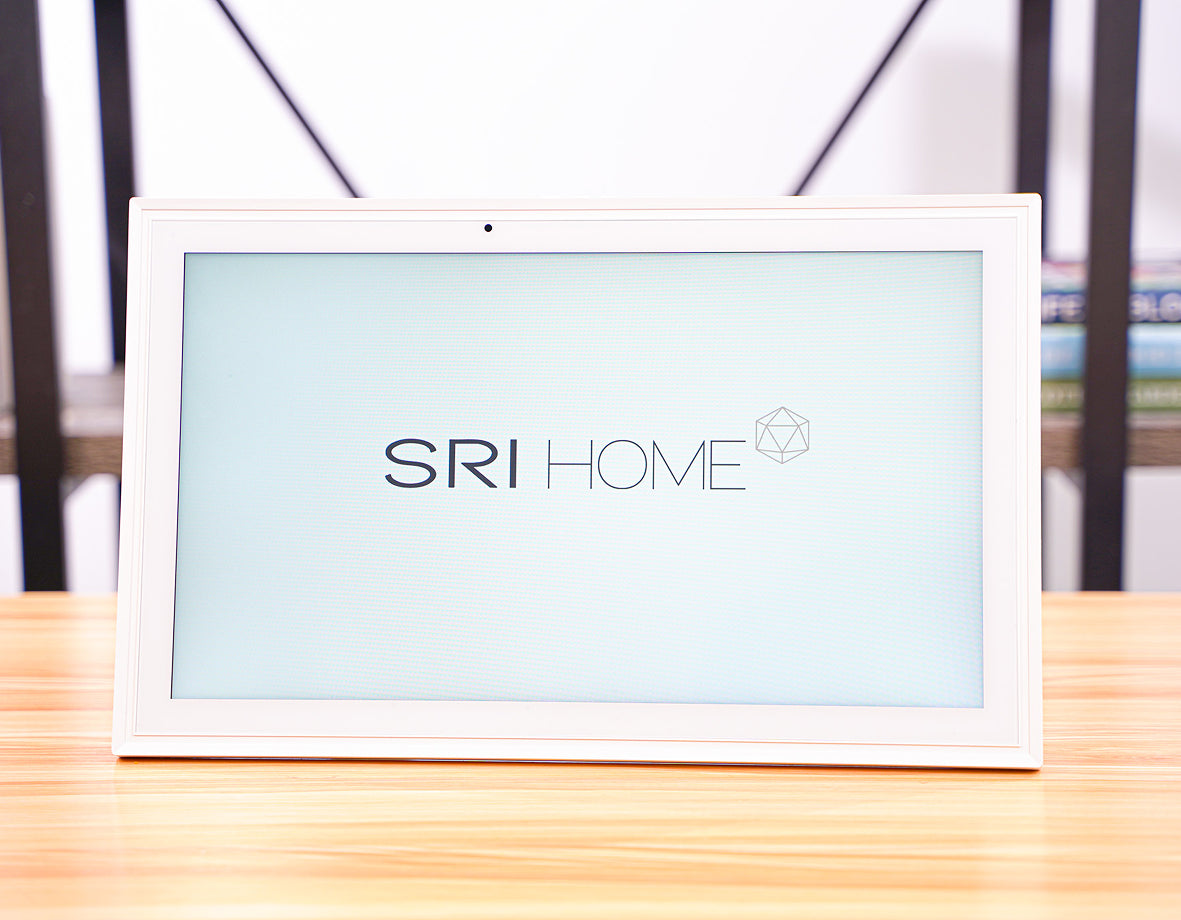
Everything you need to get up and running comes included. Just open the box and start setting up your Orca Digital Calendar.
 Your Orca Digital
Calendar (15.6" or 21.5")
×1
 Power adapter
and USB-C cable
×1
 Tabletop stand
and wall-mount kit
×1
 User manual
×1
 Certificate of Conformity
×1
Getting Started
How to Set Up Your Orca Digital Calendar
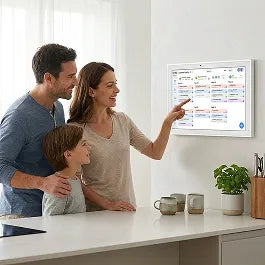
Step 1: Place your Orca
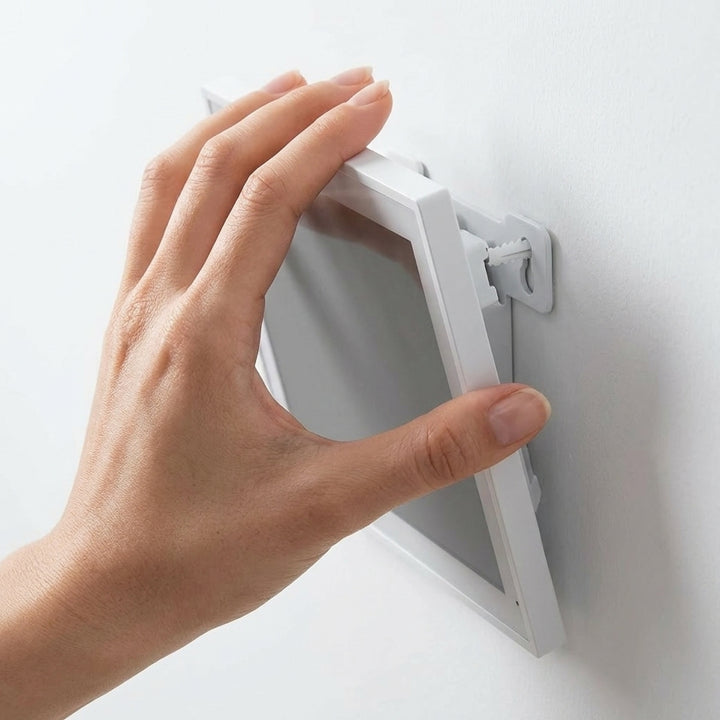
Set it on the tabletop stand, or hang it on the wall using the wall-mount kit that came in the box.

Step 2: Plug it in
Connect the power adapter to the round power input on the back, then plug it into a wall outlet.
Step 3: It turns on by itself
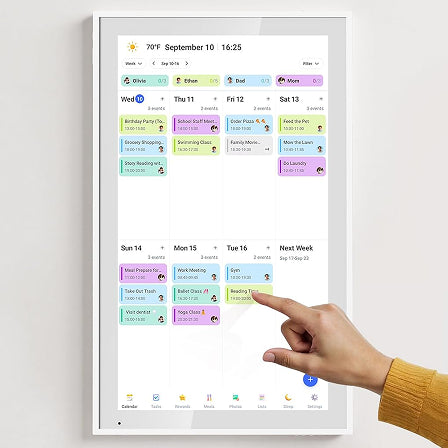
The screen comes on automatically. There is no power button. Your Orca is made to stay on all day and rest at night.
Step 4: Connect to your Wi-Fi
Follow the simple steps on the screen. Pick your home Wi-Fi and type in your password.
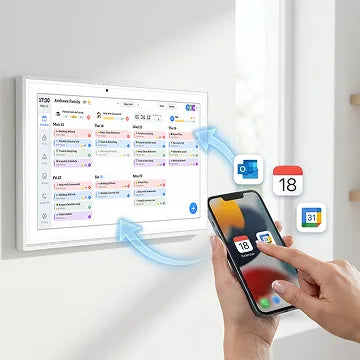
Step 5: Connect your phone
This lets you add photos and events from your phone. See “How to Connect Your Phone” below.
How to Connect to Wi-Fi
Step 1: When the screen asks, tap the name of your home Wi-Fi.
Step 2: Type in your Wi-Fi password.
Step 3: Tap to connect.
 Tip: If it will not connect, move your Orca a little closer to your Wi-Fi box and try again.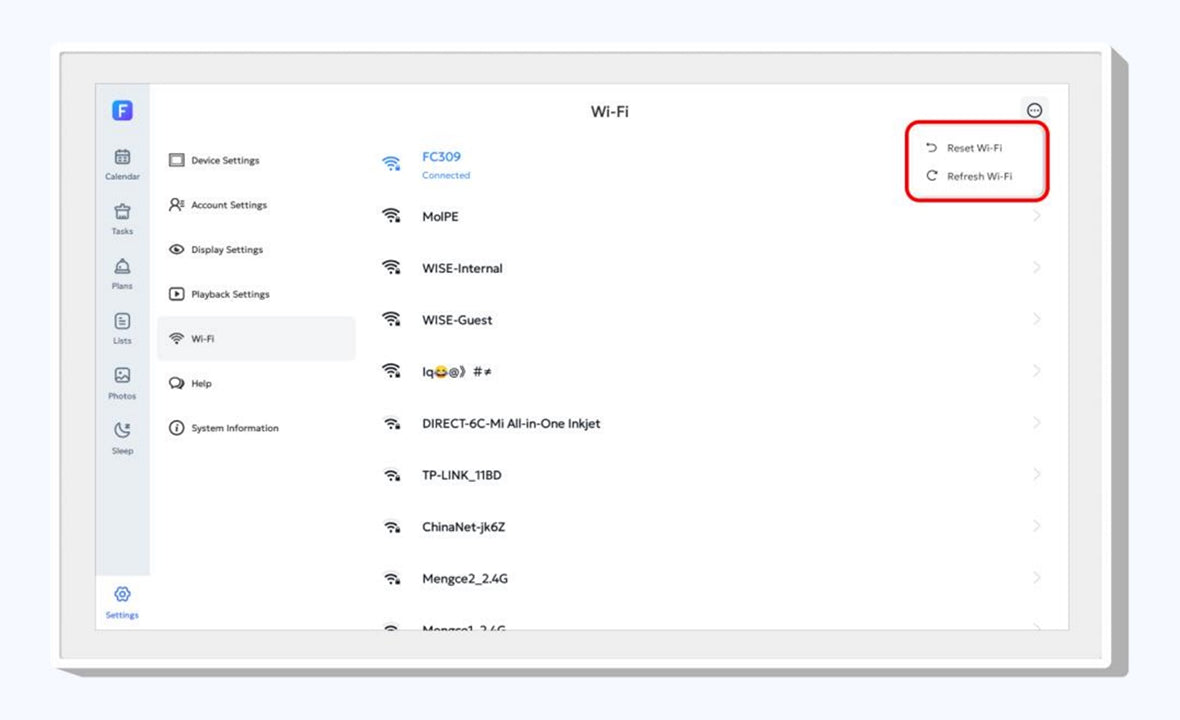
How to Connect Your Phone (FotoCube App)

Step 1
On your phone, download the free app called FotoCube from the App Store (iPhone) or Google Play (Android).
Step 2
Look at your Orca screen for an 8-digit code or a square QR code.
Step 3
In the app, type the code, or point your phone at the QR code to scan it.
Step 4
That’s it. You can now manage your calendar and photos from your phone.
Using Your Calendar
How to See Your Schedule
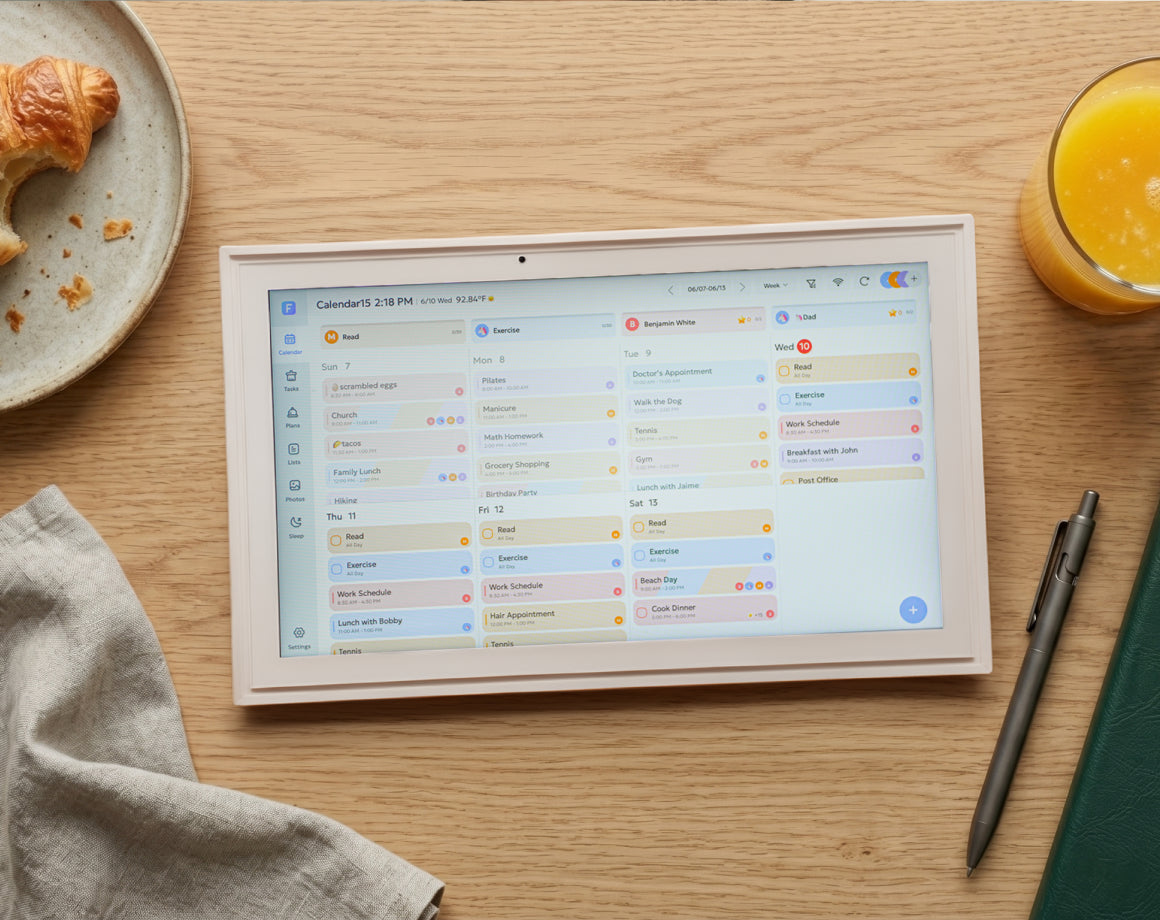
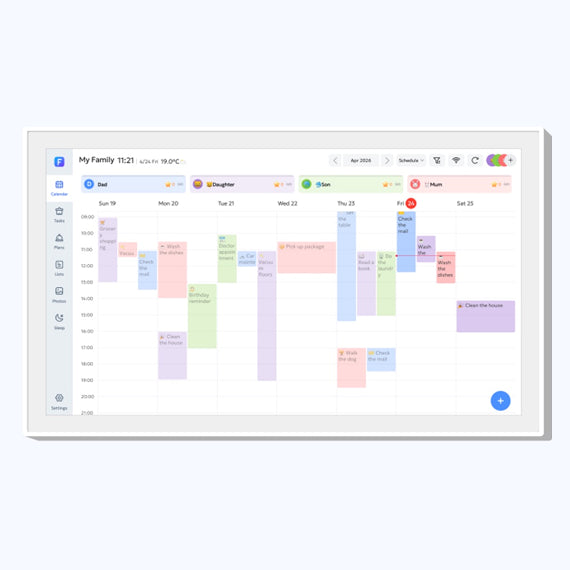
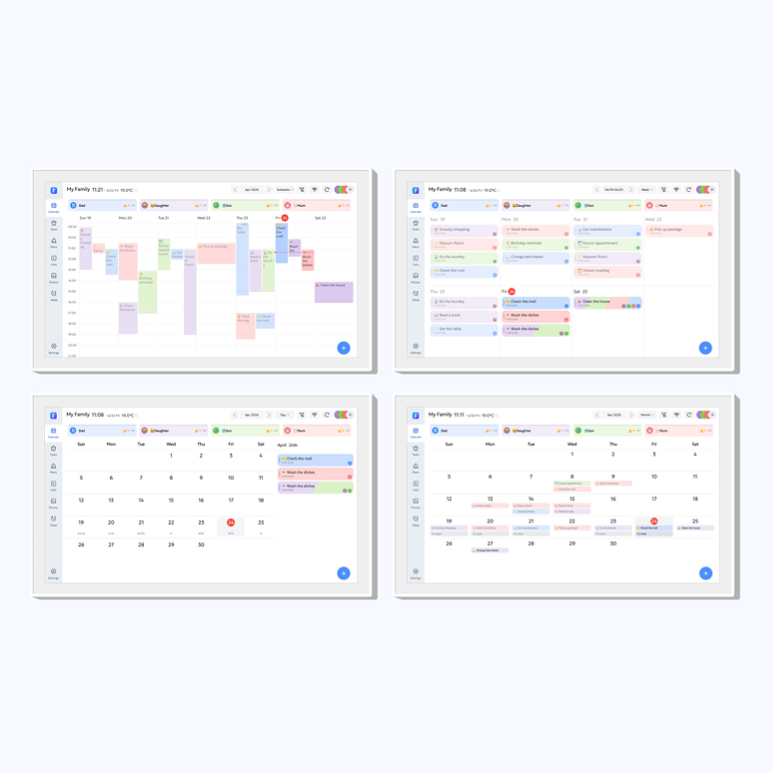
Tap Family Calendar. You will see the whole month at once, so nothing is hidden. Each person in your family has their own color, so it’s easy to see who has what.
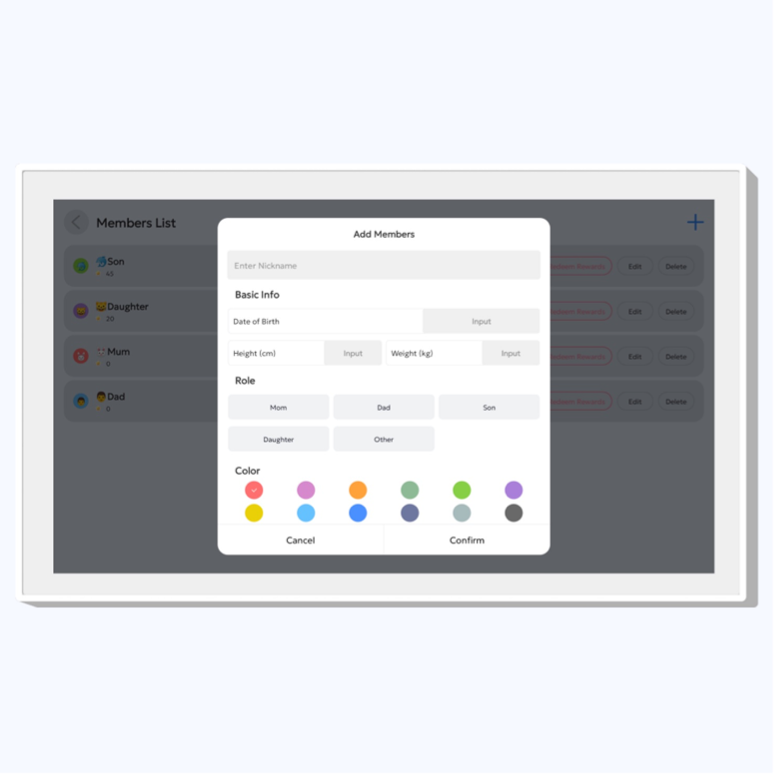
How to Set Up Family Members
You can add up to 8 people. Each person gets their own color so their events are easy to spot.
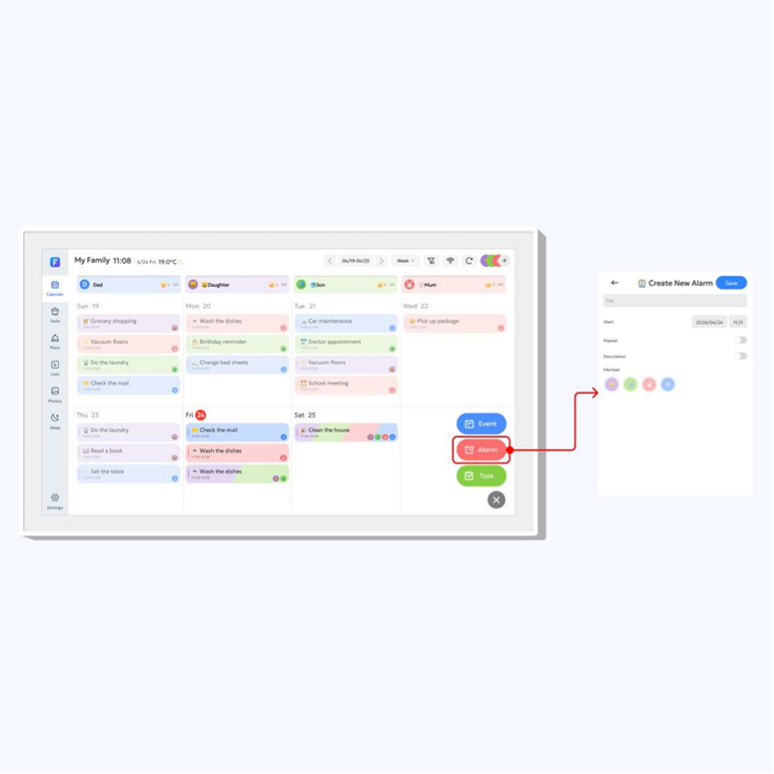
How to Set Reminders
You can set a reminder or an alarm for any event. The reminder will show on the Orca screen and send a note to your phone, with a sound.
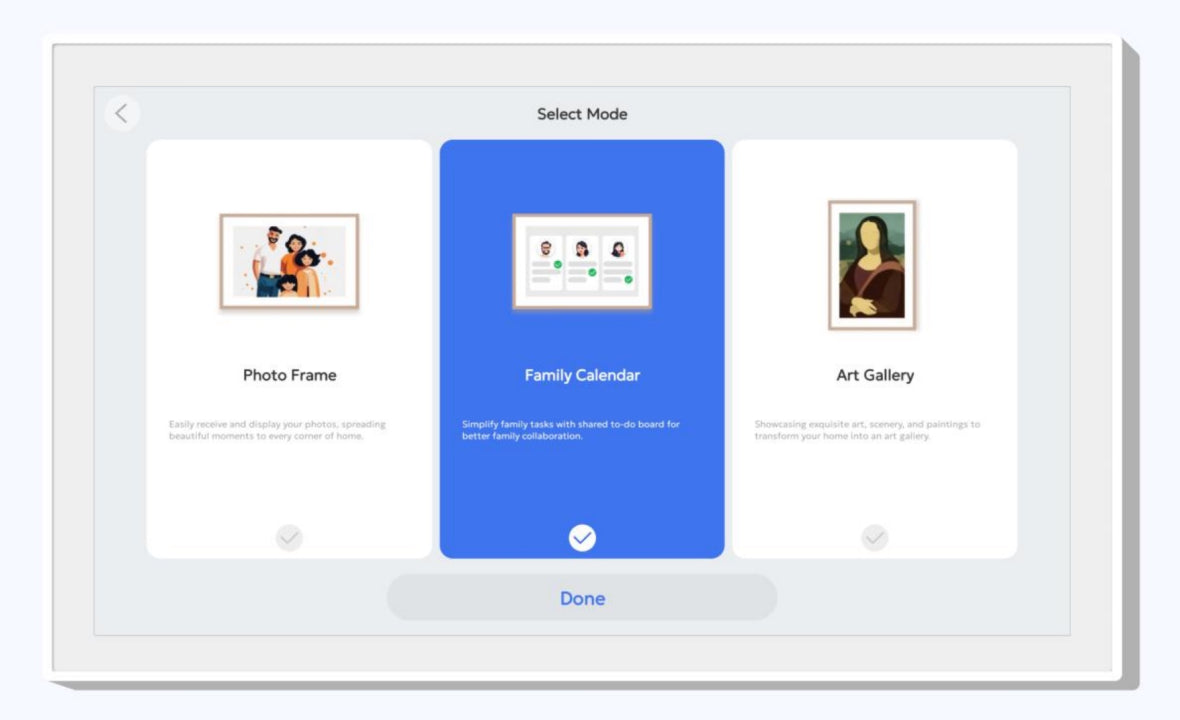
How to Switch Screens
Your Orca has three screens. Tap the menu on the screen to switch between them:
Family Calendar: your schedule
Photo Frame: your family photos
Art Gallery: pretty artwork
Tip: There are no buttons to press. You just tap the screen with your finger.How to Add or Change an Event
To add an event: tap the day you want, then type in the details.
To change an event: tap the event, then make your changes.
Tip: You can do this on the Orca screen or on your phone.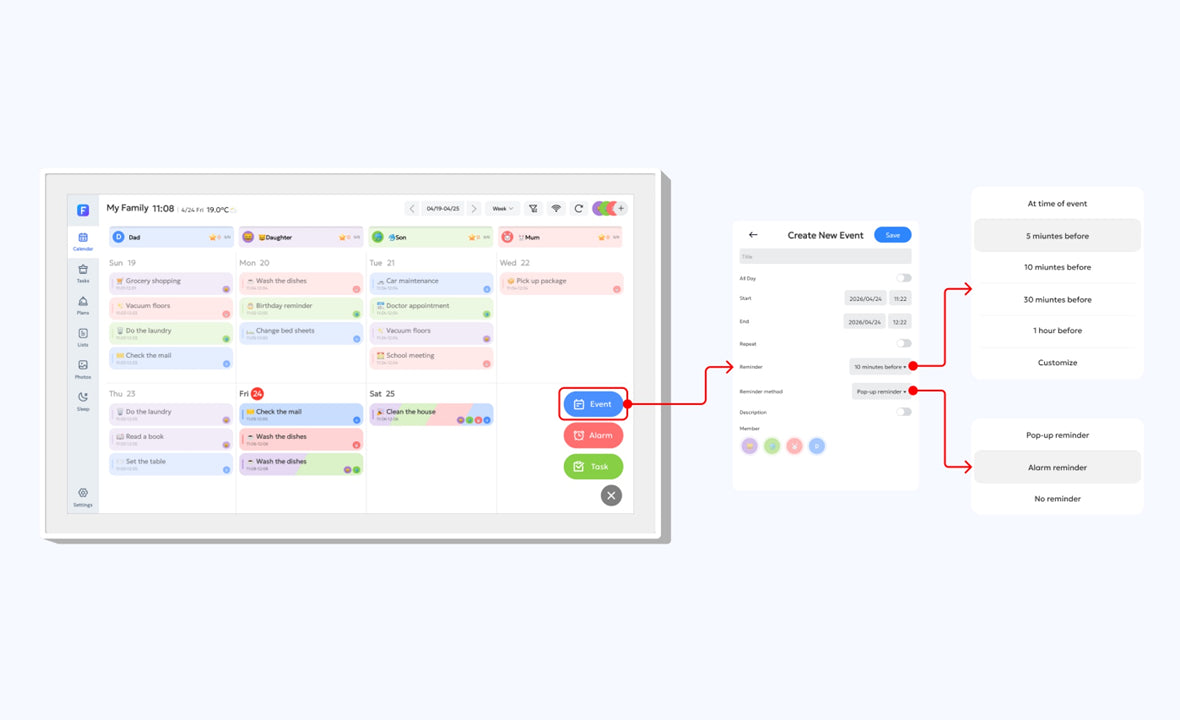
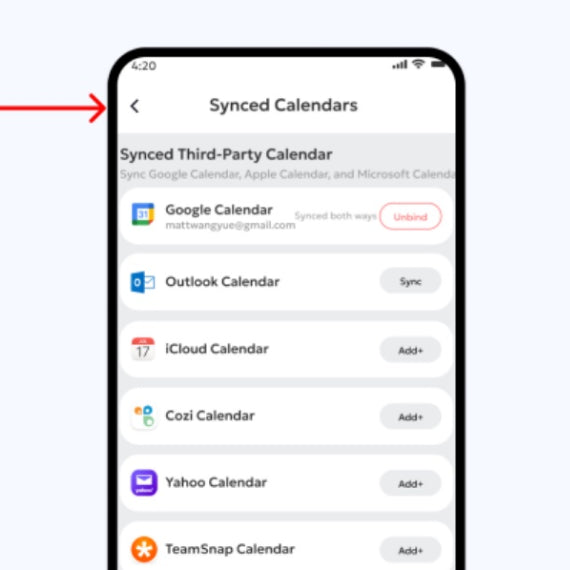
How to Connect Your Other Calendars
If you already use Google, Apple iCloud, Outlook, Cozi, or Yahoo calendars,
you can link them so everything shows up in one place.
Step 1
Open the FotoCube app on your phone and tap your Orca.
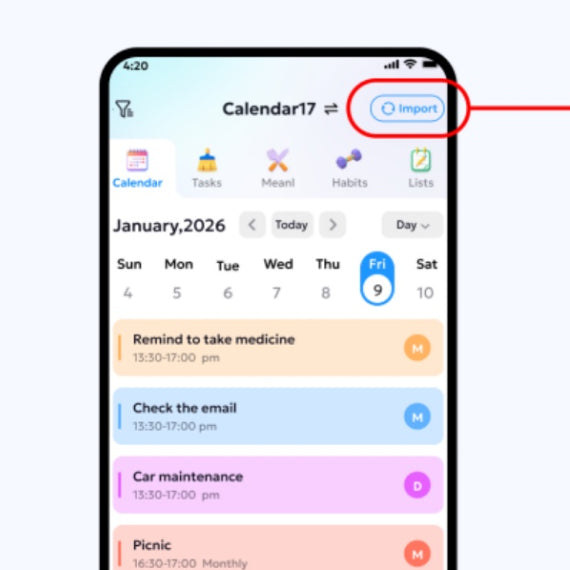
Step 2
Go to calendar settings and tap Import.
Step 3
Sync in the calendar you want to add.
Step 4
Your events will appear on the Orca, in each person’s color.
Settings
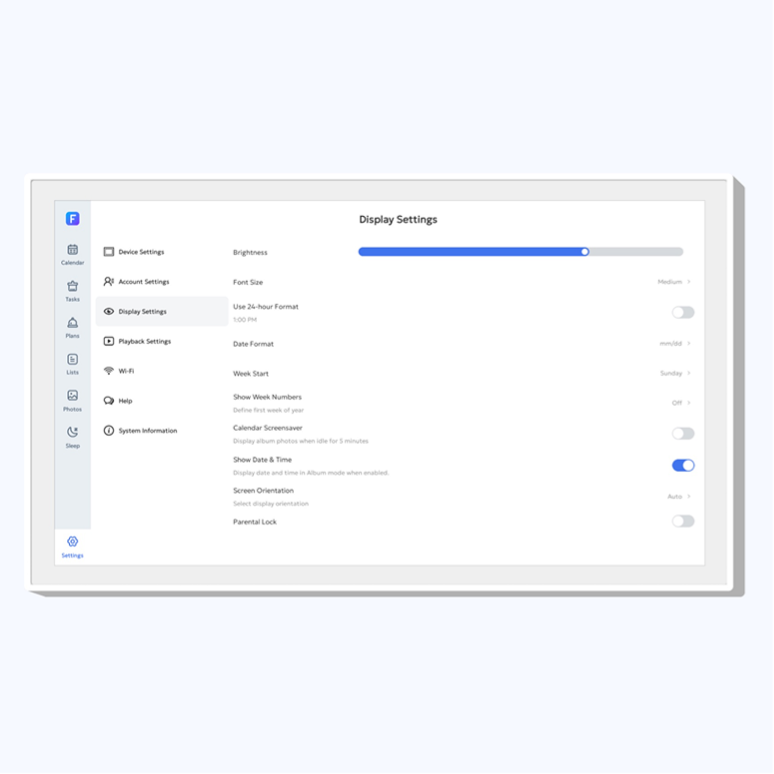
How to Change the Brightness
Tap Settings, then Brightness. Slide to make the screen brighter or dimmer.
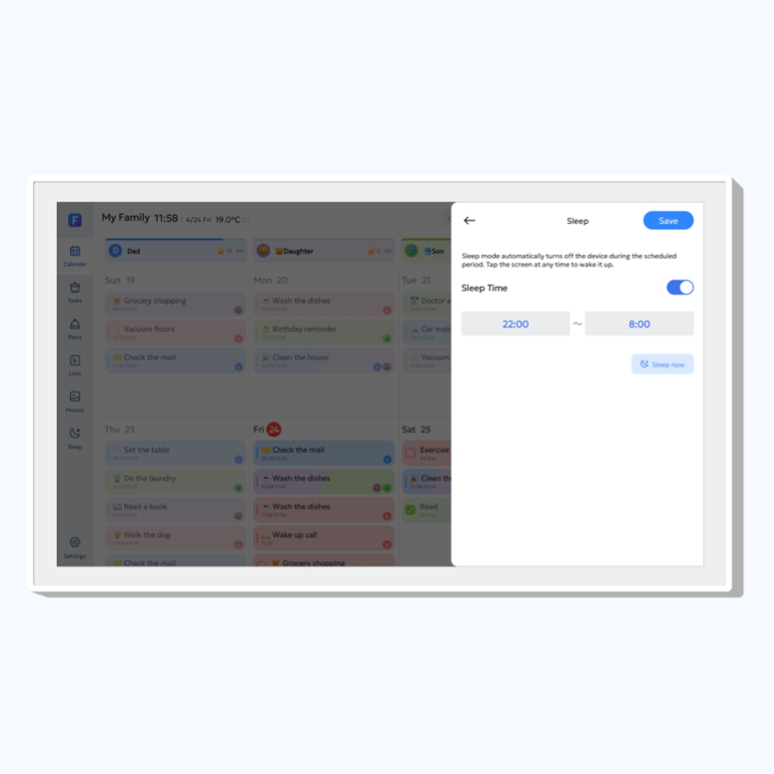
How to Set Sleep and Wake Times
In the FotoCube app, you can set your Orca to turn the screen on and off at certain times. The screen is on when you need it and rests when you don’t.
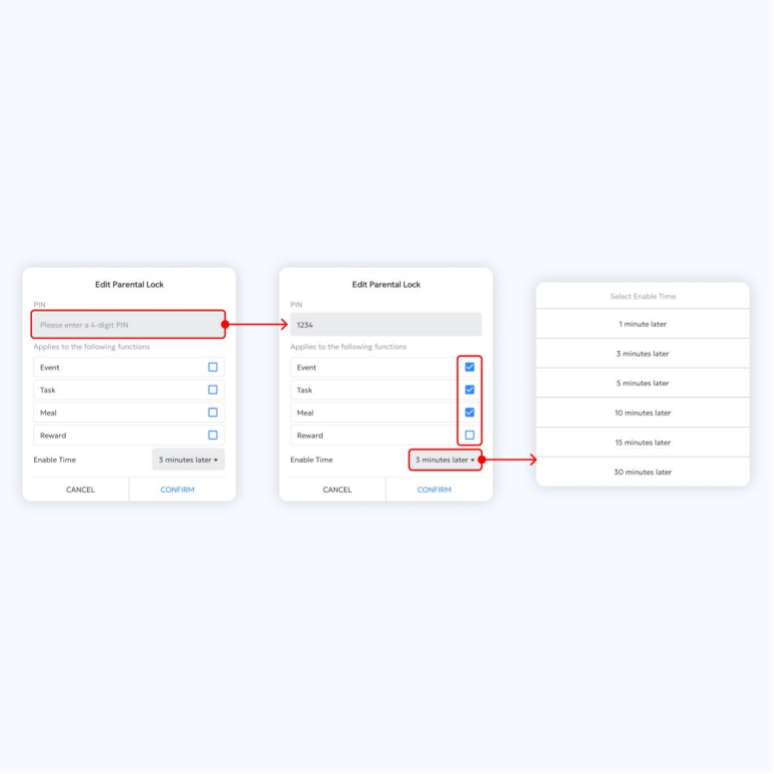
How to Lock Settings So Kids Can’t Change Them
Tap Settings, then Parental Lock. Set a PIN code. This stops anyone from changing your setup unless they know the code. Kids can still use the calendar.
Meals, Chores & Habits
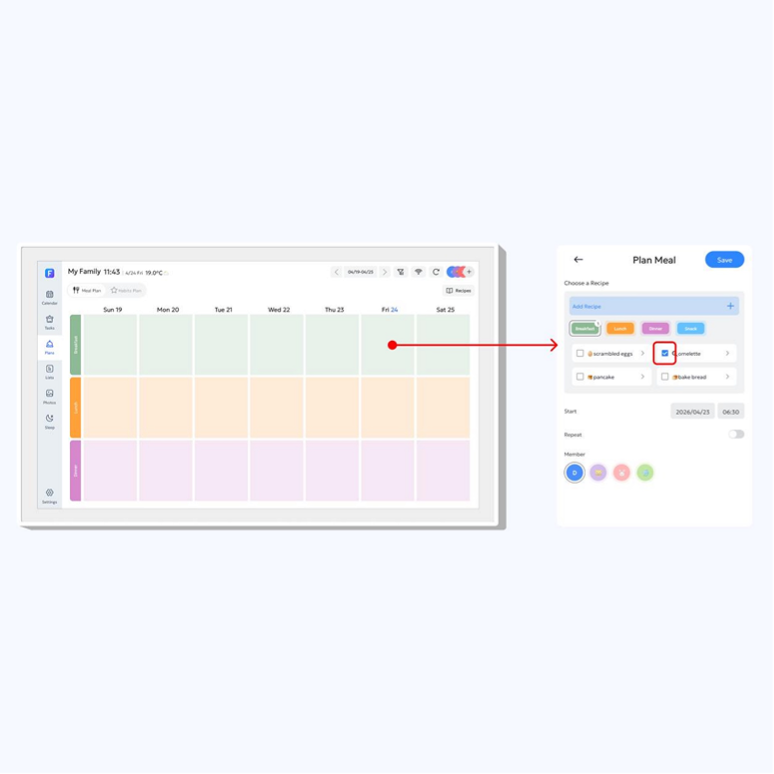
Meal Planning
Plan your meals by day, and see the ingredients for each one. This is included for free.
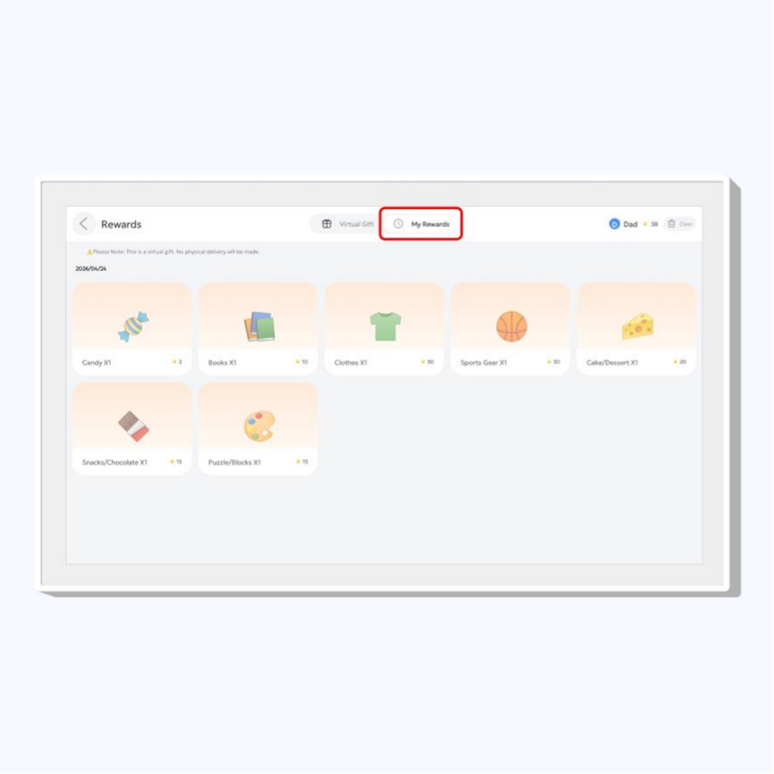
Chores & Rewards
Give chores to family members. Kids earn stars and can trade them for rewards. You can manage it all right on the screen.
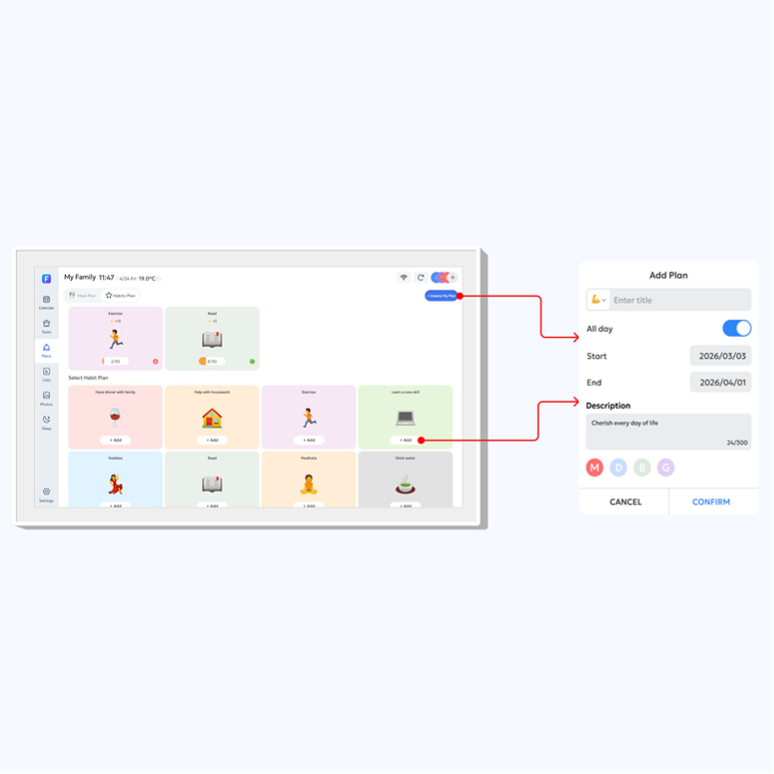
Habits
Keep track of daily habits, like drinking water or taking medicine, with simple charts.
Photos & Artwork
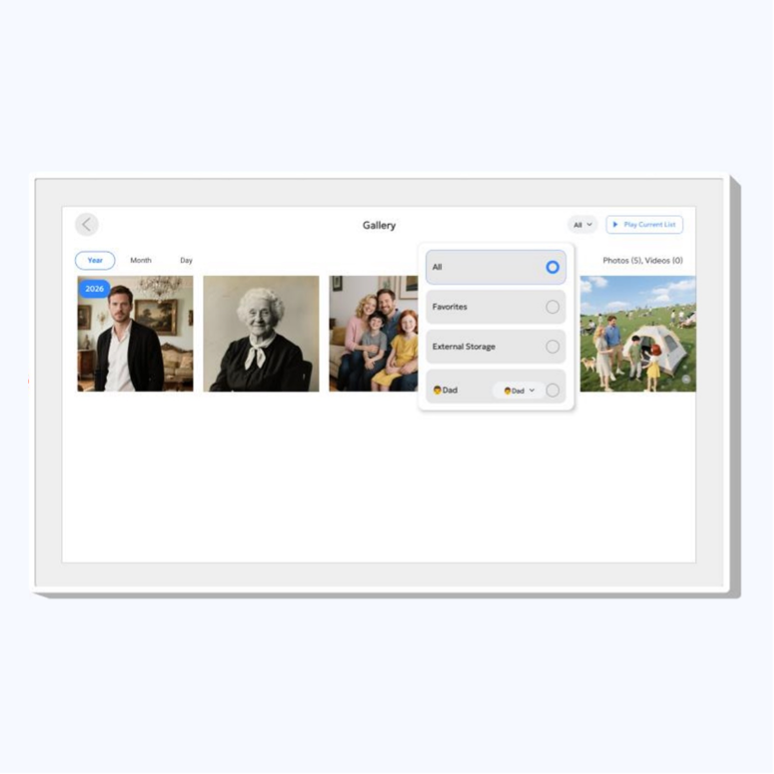
Photo Frame
When you’re not using the calendar, your Orca shows your family photos. Send photos from the FotoCube app on your phone. This is included for free.

Art Gallery
When the calendar is not in use, your Orca can show beautiful artwork, so it always looks nice on the wall.
Playing Music or Videos
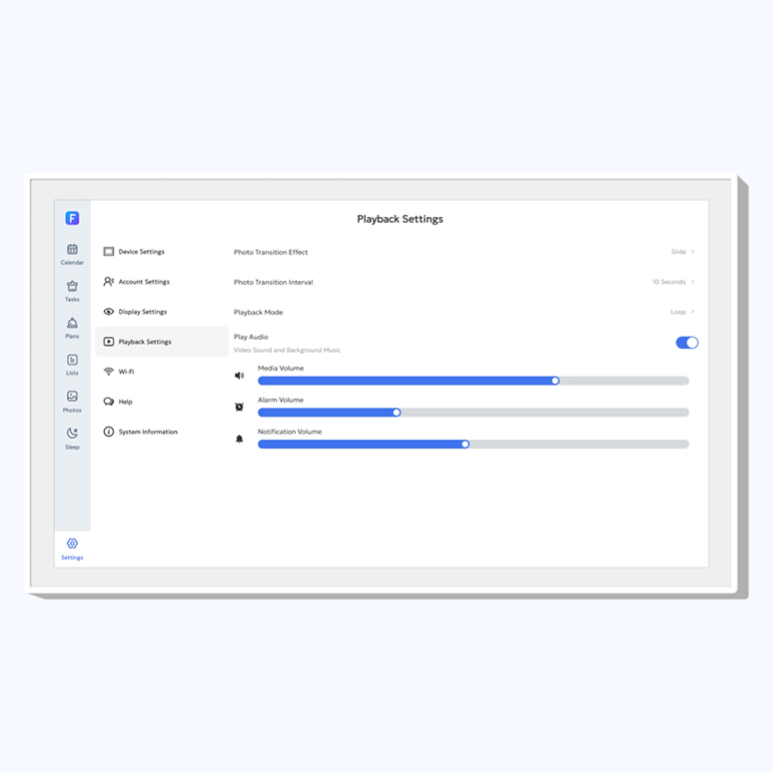
Your Orca can play music and videos. Add them using an SD card or a USB-C cable.
Help & Troubleshooting
My Wi-Fi won't connect
Move the Orca closer to your Wi-Fi box. Restart your Wi-Fi box, then unplug your Orca and plug it back in. Try again.
My calendar isn't updating
Make sure your Orca is connected to Wi-Fi and to the FotoCube app. Wait a moment, then check again. Events can take a short time to appear.
My screen won't turn on
There is no power button, so check that the adapter is plugged in firmly at both ends, and that the outlet is working.
My phone won't connect to the Orca
Make sure your phone and your Orca are on the same Wi-Fi. Then type the 8-digit code again, or scan the QR code again.
The screen isn't responding to my touch
Gently wipe the screen with a soft cloth. If it still doesn't respond, unplug your Orca for 30 seconds, then plug it back in.
Device Specifications
Tip: For indoor use only. Keep away from water. Avoid placing directly next to sinks, stovetops, or areas with frequent splashing or steam.Common Questions
Do I have to pay a monthly fee?
No. Everything is included. There are no monthly fees, ever.
What if I don't like it?
You have 99 days to try it. If it's not right for you, send it back for a full refund.
Is it under warranty?
Yes. Your Orca is covered against manufacturing defects.
Can I stop my kids from changing things?
Yes. Set a PIN code under Parental Lock. Only people with the code can change your setup.
Which calendars does it work with?
Google, Apple iCloud, Outlook, Cozi, and Yahoo.
Can I talk to a real person for help?
Yes. You can call or email us. A real person will help you.
Phone: (800) 958-1094
Email: support@srihome.com
Submit a Request
Please explain your issue below. A support team member will review it and get back to you shortly.